

Using the Hiring Room
Your private page with your shortlist. Pick who you want to talk to and show their contact.
The Hiring Room is a private page for one job. It shows your shortlist: the candidates Lokals recommends. We send you the link by email. You don't need a password. Please don't share the link outside your company.
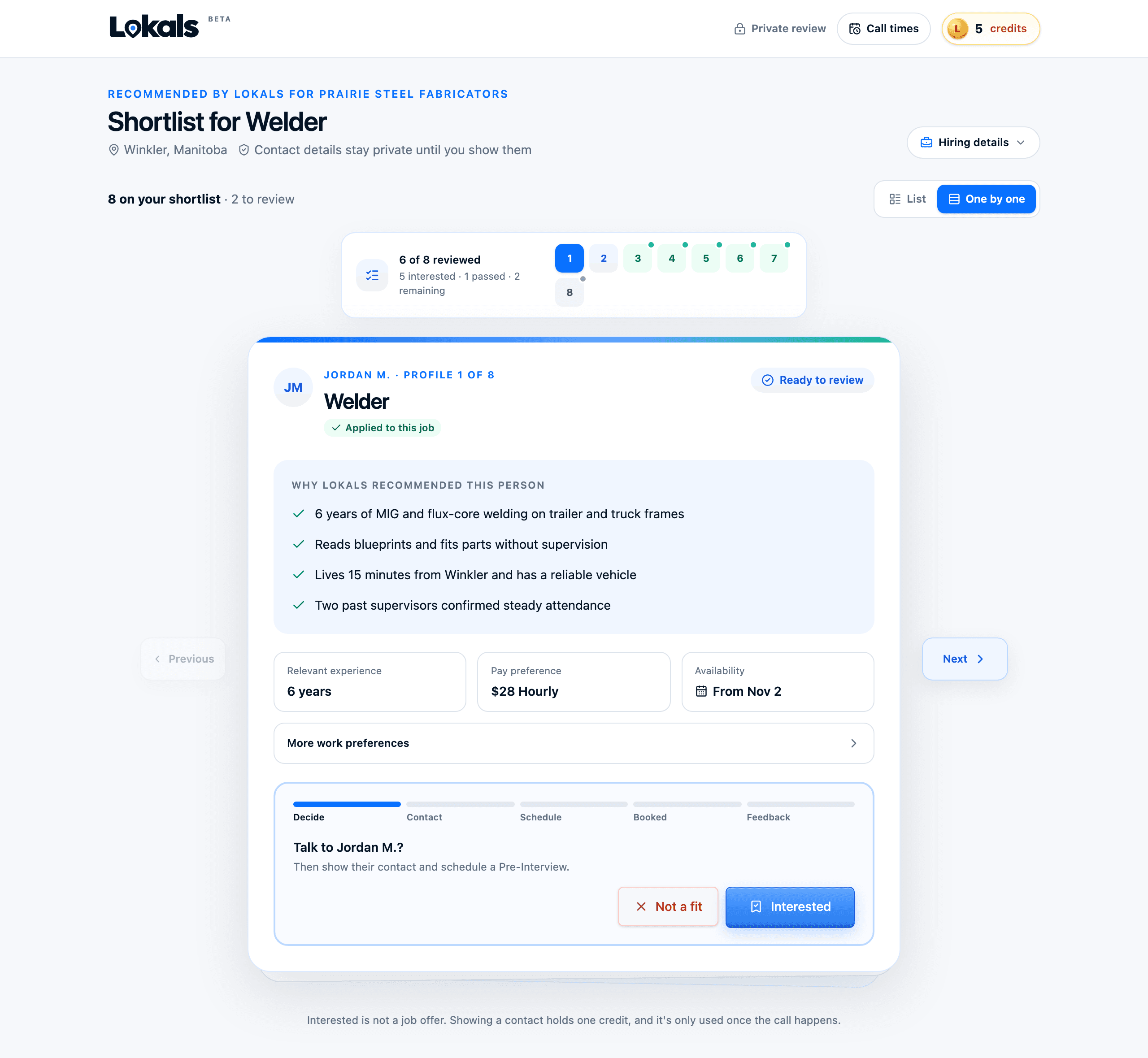
The top of the page
- Shortlist for your job title.
- A gold credit coin with the number of Available credits. Tap it to see Available, Held, Booked and Used. How credits work
- Call times, where you tell us who makes the calls and when. Set your call times
Two ways to look
- One by one shows one candidate card at a time.
- List shows everyone, sorted into tabs.
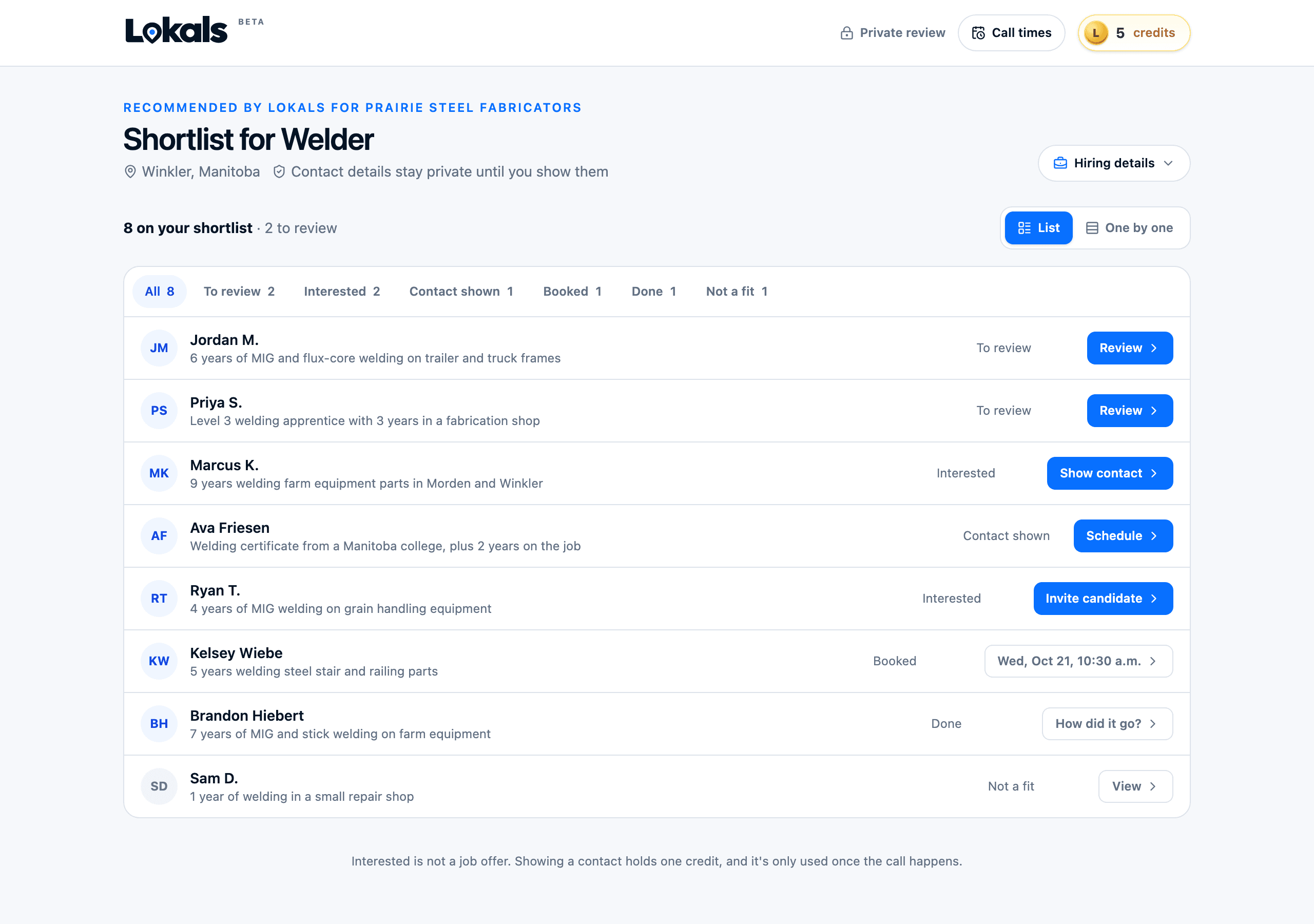
| Tab | Who is in it |
|---|---|
| To review | Candidates you haven't decided on yet. |
| Interested | Candidates you want to talk to. |
| Contact shown | Candidates whose name, phone and email you can see. |
| Booked | Candidates with a Pre-Interview on the calendar. |
| Done | Candidates you've had the call with. |
| Not a fit | Candidates you passed on. |
What a card shows
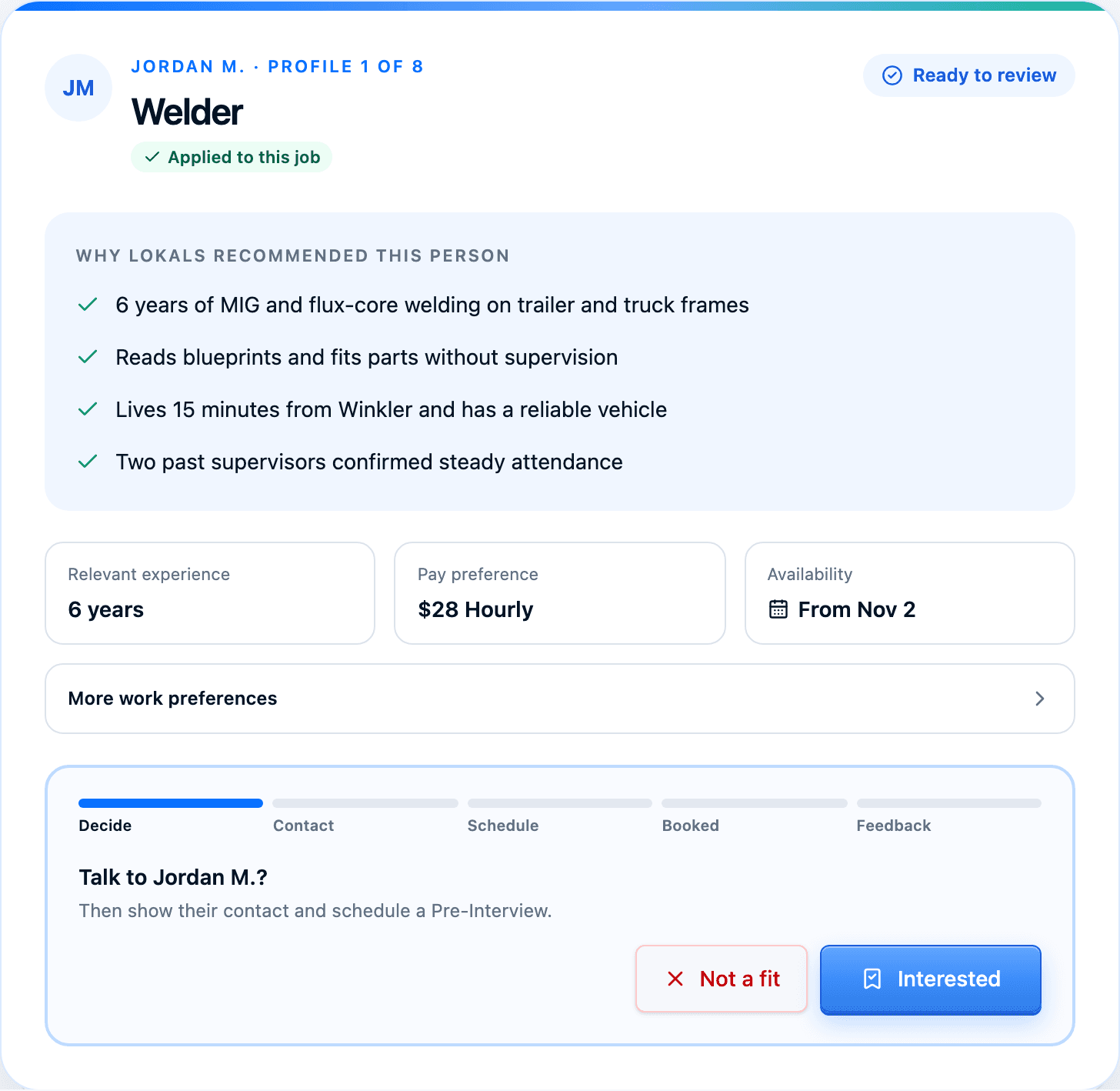
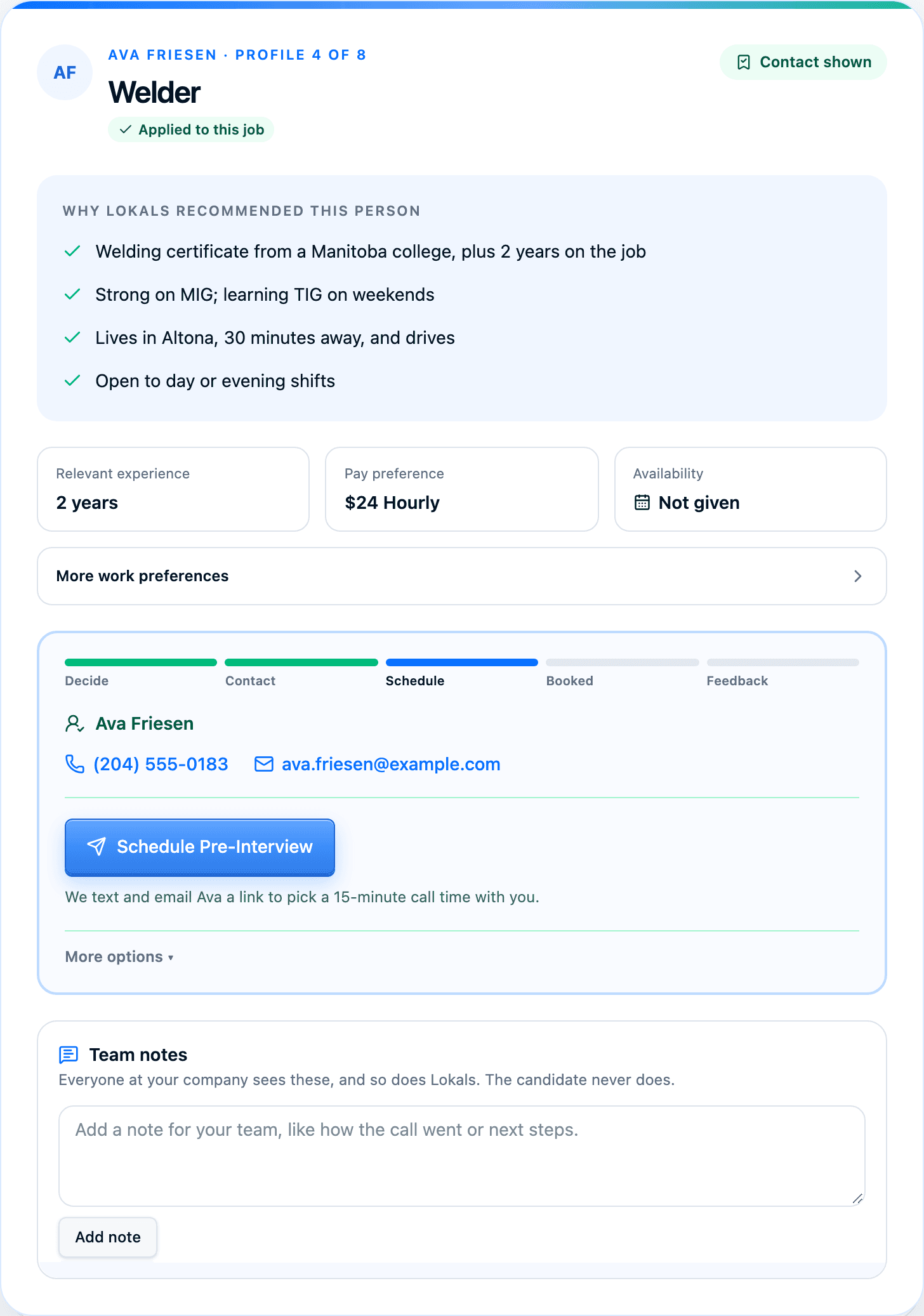
- A first name and last initial, like "Jordan M."
- Applied to this job if they applied, or Said yes to this job if they said yes when we asked.
- Why Lokals recommended this person. Short points from their profile, work interview and references.
- Their years of experience, the pay they want, and when they can start.
- More work preferences, like shifts and how far they will drive.
- A step strip that shows where you are: Decide → Contact → Schedule → Booked → Feedback.
The card does not show their full name, current employer, phone or email until you click Show contact.
Step 1: Decide
On each card, choose one:
- Interested. You want to talk to this candidate.
- Not a fit. This candidate is not right for the job. You can pick a reason, like experience, pay, location or shift. Changed your mind? Click Undo. On a card you marked Interested, click Not a fit after all.
Step 2: Contact
When you're ready to talk, click Show contact · 1 credit. We ask you to confirm first.
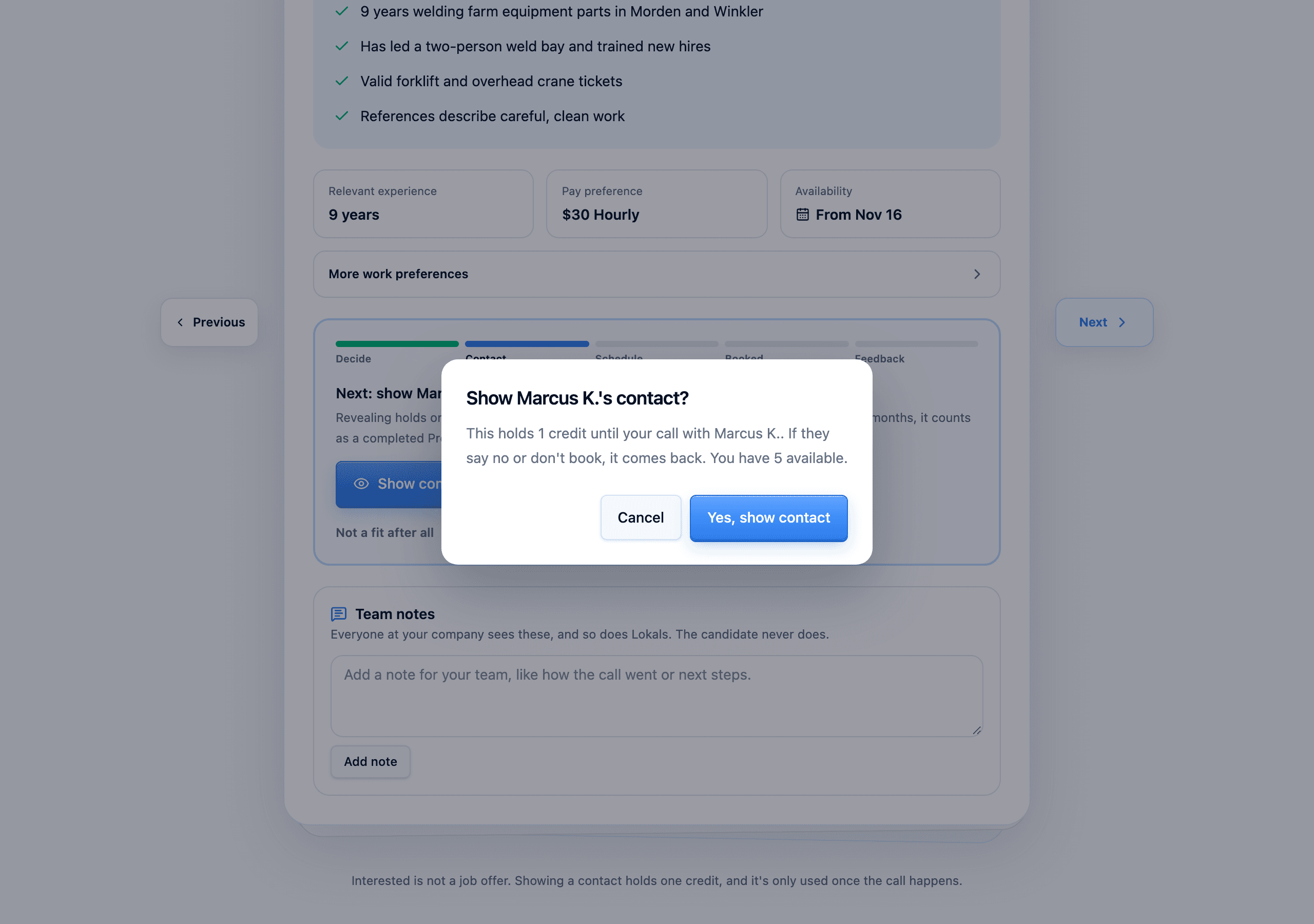
Show contact does two things:
- Shows the candidate's full name, phone and email.
- Holds one credit until your call. If they say no or don't book, the credit comes back.
Before you click Show contact
If you contact this person outside Lokals within 12 months, it counts as a Pre-Interview, and the credit is used.
Already know this person?
Sometimes the candidate is already in your own records. Within 48 hours of Show contact, open More options, enter the date you first had them on file, and click Already in our system. The credit comes back.
Candidates who didn't apply
Some candidates on your shortlist didn't apply to your job. For them, you'll see Invite candidate instead.
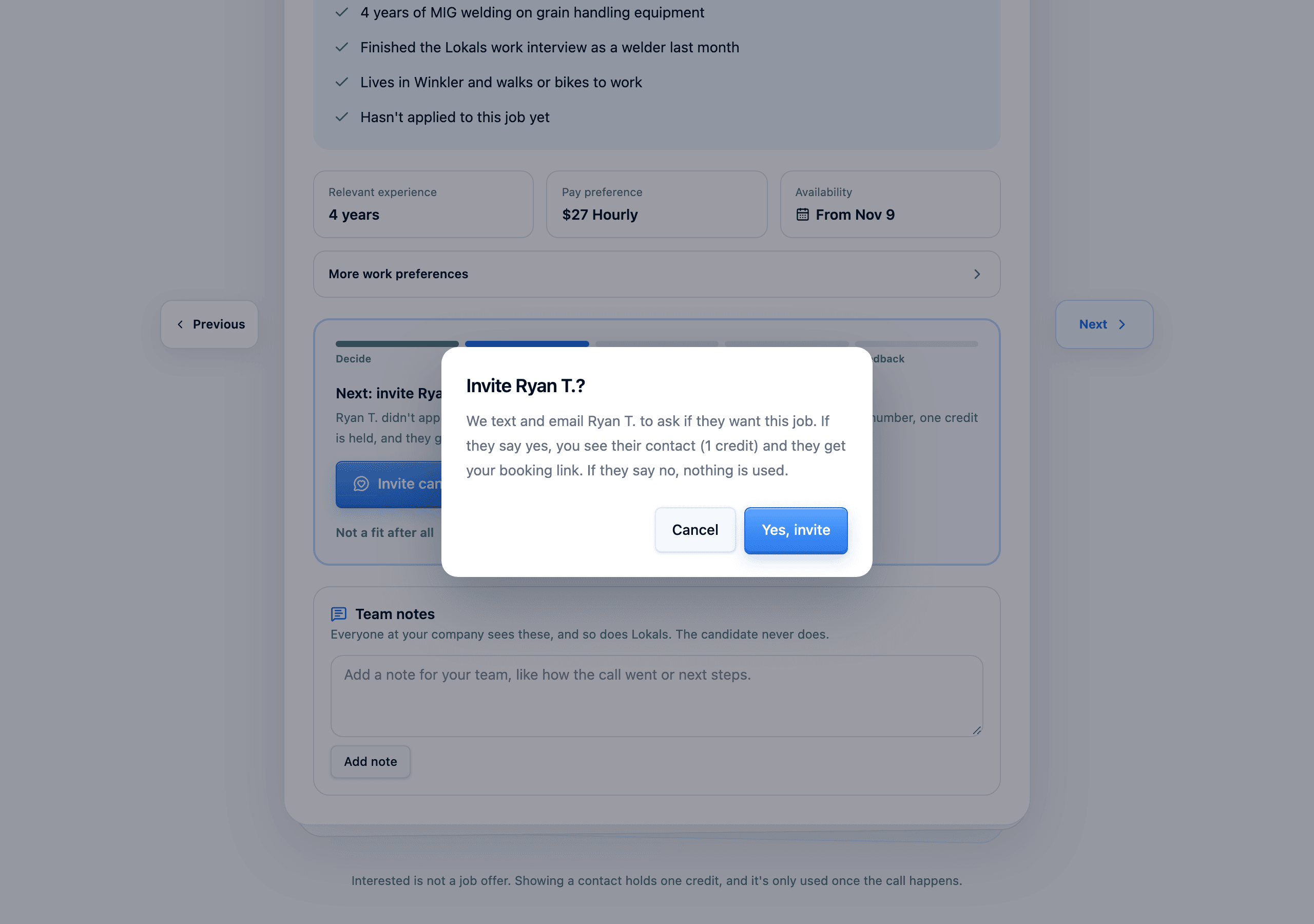
- Click Invite candidate, then confirm.
- We text and email them to ask if they want this job.
- If they say yes, you see their contact (1 credit), and they get your booking link.
- If they say no, or don't answer within 5 days, no credit is used.
Step 3: Schedule
Click Schedule Pre-Interview. The candidate gets a text and email with your booking link, and picks a 15-minute time. See Booking the call.
Steps 4 and 5: Booked and Feedback
When they book, the card moves to Booked. After the call, tell us how it went. See After the call.
Team notes
Each card has Team notes. Everyone at your company sees them, and so does Lokals. The candidate never does.
You need credits to show contact
You need at least one Available credit, and your signed terms on file. If one is missing, the room tells you. Email us and we'll fix it.